What POKY Does
POKY helps you assign and integrate peaks in NMR spectra. It processes spectra from NMRPipe, Bruker, Varian VNMR, and other major formats. Output includes:
- Text peak lists showing assignments, chemical shifts, volumes, and linewidths
- Formatted output for structure calculation with DYANA, XPLOR, CYANA, and PONDEROSA
- NEF and NMR-STAR 3.1 formatted chemical shift files for BMRB deposition
Assignment       w1      w2      Volume     lw1 (hz)   lw2 (hz)
  G16H3'-H8    4.905   8.010   7.15e+06 ga    28.6       20.0
  G16H4'-H8    4.439   8.013   5.42e+06 ga    35.3       16.9
 T17H6-G16H8   7.205   8.004   1.68e+06
 T17H7-G16H8   1.459   8.008   2.09e+07 ga    27.5       24.1
Starting POKY
| Platform | How to launch |
|---|---|
| 🍎 macOS | Double-click poky.app in /Applications, or run poky.app/Contents/MacOS/poky from Terminal |
| 🪟 Windows | Double-click C:\poky_win\bin\poky.bat |
| 🐧 Linux | Run poky_linux/bin/poky.sh or just poky if aliased |
Once started, the POKY main window appears. It contains the top menu bar, pointer mode icons, and three tabbed widgets:
- Experiments — manage spectra and view windows
- Resonances — view and navigate chemical shift assignments
- POKY Automation Guide (PAG) — access automation workflows for your study type
Practice Data (SIM-PRAC)
If you don't have your own NMR data, POKY includes the SIM-PRAC program that generates a simulated protein NMR practice dataset — perfect for following along with the tutorial videos.
To launch SIM-PRAC:
- From the POKY main window: Ext. menu → Spectrum → SIM-PRAC
- Or type the two-letter command: me
Opening Spectra
POKY natively reads .ucsf format spectra. Other formats are automatically
converted:
| Source Format | Converter / Method |
|---|---|
NMRPipe .ft2 / .ft3 | GUI/Auto-converted or pipe2ucsf |
Bruker 2rr / 3rrr / 4rrrr | GUI/Auto-converted or bruk2ucsf |
| Varian VNMR | GUI/Auto-converted or vnmr2ucsf |
NMRView .nv | GUI/Auto-converted or nv2ucsf |
| Felix matrix | Direct read |
JCAMP-DX .jdx/.dx | GUI/Auto-converted |
Drag and Drop: The simplest way to open spectra — drag files from your file manager (Finder, Explorer, Nautilus) directly onto the Experiments tab. Large files prompt a confirmation before conversion.
Alternatively, use File → Open or the open button in the Experiments tab. Multiple spectra can be opened simultaneously.
Contour Levels
After opening a spectrum, adjust the contour levels to eliminate noise. Select View → Contour Scale (or type ec for the easy contour dialog).
The contour scale shows positive levels (upper half) and negative levels (lower half) in different colors. Adjust by dragging in the scale:
- Drag below the lowest level to remove / add low contour levels
- Drag above the highest level to add high levels
- Drag between levels to change the number of intermediate levels
The easy contour dialog (ec) lets you set contour settings for multiple spectra at once using mostly mouse clicks.
Moving Around
Navigate spectra using:
- Scrollbars — scroll horizontally/vertically in the view
- Arrow keys — pan in the view
- View → Zoom, mouse-wheel, one-letter command: + / -, or two-letter commands: zi (zoom in), zo (zoom out), zp (zoom previous), zf (zoom full)
- Zoom pointer mode — drag a rectangle to zoom to that region
- Center pointer mode — click a point to center the view there
Picking Peaks
Switch to the Find/Add Peak pointer mode, then:
- Click on a peak to place a single peak marker
- Drag a box around a region to auto-pick all peaks inside the lowest contour level
The automatic peak picker uses a minimum height filter (set by the contour level) and optional minimum linewidth and drop-off filters — configurable in the peak pick dialog (kt).
APES Automated Peak Picking (ae) provides AI-assisted backbone and sidechain peak picking for higher accuracy on protein solution NMR spectra.
iPick Peak Picking (iP) provides more versatile and sophisticated peak picking for different kinds of spectra.
REDEN Multi-fitting (re) provides multi-fitting based peak decomposition for crowded view area.
To move a peak, switch to Select mode and drag-and-drop. To delete, select peaks and press Delete. Undo the last deletion with eu.
Assigning Peaks
Select a peak and open the assignment dialog (at). Type a group name and atom name for each axis, then press Apply.
Assignment naming follows polymer conventions. For example, A23 CA refers
to the alpha carbon of alanine residue 23. Groups use one-letter amino acid codes followed
by the sequence number (e.g., A23, G16, T17).
📺 Assignment Tutorials
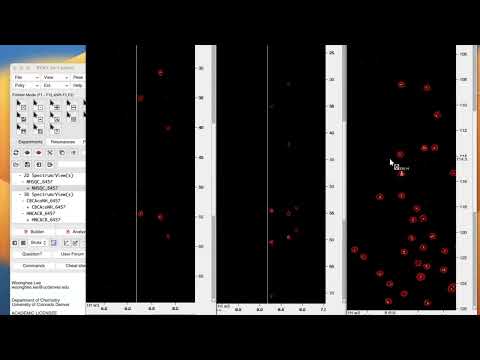
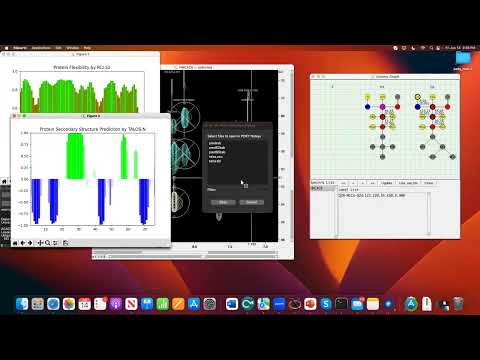
When you make an assignment, a label appears near the peak. In Select mode you can drag the label to a better position. To display all resonances along the spectrum edges, use vR.
Integrating Peaks
Switch to the Integrate pointer mode and drag a box around a peak. The default method is Gaussian fitting — the peak is recentered to the best fit and a circle is drawn around it.
Integration methods (set via it):
- Gaussian / Lorentzian / Pseudo-Voigt fitting — most accurate for resolved peaks
- Simultaneous fitting — for overlapping peaks within the same contour
- Boxing / Ellipsing — sum all intensities within a drawn region
View 1D cross-sections with View → Show Slices (vS) to inspect the quality of fitting.
Listing Peaks
Open a peak list with lt. Peak lists show all peaks in the spectrum and can be written to a file with the Save button.
Double-clicking a peak list entry recenters the spectrum view to that peak. Commands typed in the peak list window act the same as in a spectrum view.
Resonances
POKY maintains a resonance list — a set of atom names and their average chemical shift frequencies calculated from all assigned peaks. View with rl.
Resonances are organized by molecule name (e.g., ubiquitin)
and condition name (e.g., ph7_25C). Set these in the
spectrum settings dialog (st). Separate resonance sets are kept
for each distinct molecule/condition combination.
Saving Your Work
POKY saves all assignments, label positions, view configurations, etc. in
a .save save file (located in ~/Poky/Save/).
The original spectrum file is never modified.
- File → Save — save data for the currently selected spectrum
- File → Project Save — save all open spectra as a project in
~/Poky/Projects/ - File → Project Open — reload all spectra from a saved project